Tomato Firmware for Linksys Routers.
What is Tomato Firmware ?
Tomato is free open source Linux-based firmware for several Broadcom-based Wi-Fi routers. The major emphasis of Tomato is on stability, speed and efficiency. It is maintained by Jonathan Zarate, who also developed HyperWRT +tofu. Click here to go to the official Website.
Tomato is NOT compatible with Linksys WRT54G/GS v5-v7 or newer WRT54G/GS routers. These routers do not run Linux. The Linksys WRT54GL router is best if you are interested in making a Tomato-compatible purchase.
Saturday, January 28, 2006


Thursday, January 26, 2006
Change Password on Router !
How to change the Password on the Linksys Router.
When accessing the router’s web-based setup page, a log-in screen will appear asking for the router’s password. The router’s default password is “admin.” You should change the password for security purposes.
The router’s password must be changed to:
Prevent unwanted users from accessing the router’s web-based setup page.
Enable Remote Management.
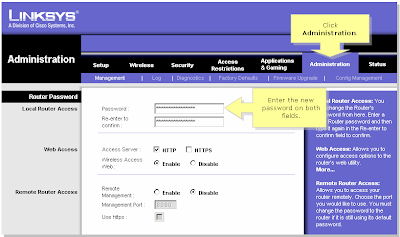
Be sure to click Save Settings after the password is changed.
When accessing the router’s web-based setup page, a log-in screen will appear asking for the router’s password. The router’s default password is “admin.” You should change the password for security purposes.
The router’s password must be changed to:
Prevent unwanted users from accessing the router’s web-based setup page.
Enable Remote Management.
- Connect the computer to the router.
- Open the Setup page of the router.
- Click on Administrtaion Tab, than the very first option is to change the password.

Be sure to click Save Settings after the password is changed.
Friday, December 23, 2005
Change Password on WAG354G !
How to change the Password on WAG354G.

- Connect a computer to the router.
- Open a browser [eg. : Internet Explorer].
- In the Address Bar type : 192.168.1.1 [default IP Address of the router].
- The default password is admin.
- Once in the Setup Page, click on Administration TAB.
- Here you can change the password for the router.

Monday, December 19, 2005
Firmware Release for WAG54GS.
New Firmware Released for WAG54GS.
Firmware version : 1.00.12 (Annex A).
Release Date : 06 December 2005.
- Fixes issues with SES function causing configuration loss.
- Added Incoming and Outgoing log to GUI[Graphical User Interface].
Click here to download the firmware.
Firmware version : 1.00.12 (Annex A).
Release Date : 06 December 2005.
- Fixes issues with SES function causing configuration loss.
- Added Incoming and Outgoing log to GUI[Graphical User Interface].
Click here to download the firmware.
Wednesday, October 26, 2005
How to Access the Router.
How to Access the Linksys Router's Web based Utility.
- Before accessing the router’s web-based setup page, make sure the router is powered on and the computer is wired to one of the Ethernet ports on the router (1, 2, 3 or 4 ).
- Open a web browser [Internet Explorer / Firefox / Safari]. In the Address Bar type 192.168.1.1 and hit Enter. A Pop up should appear forb the Username and password. The default password is admin.
- Once in the setup page, you can configure the settings for the router.
- If you cannot open the setup page than the possible causes are that the computer is not connected to the router[wired or wireless] or thw computer is assigned a static IP Address. Change the setings to Obtain IP Address Automatically.
- Make sure the Popup blocker is disabled.
Subscribe to:
Posts (Atom)